 If your Mac has too many duplicate files, Gemini 2.10.2 for Mac can help you locate them. This utility scans your Mac for duplicate and similar files, then lets you review and delete unnecessary copies to free up storage space.
Gemini 2 is an application developed by MacPaw. It can scan folders, as well as Photos and Music libraries and external drives. It also features a Smart Selection function that helps you choose which files to delete.
Update 2.10.2 focuses on stability. According to the Mac App Store, it fixes an issue that could cause the app to crash when starting a scan from the menu bar, as well as a launch failure that affected some Macs.
Features
- Find duplicate files
- Gemini 2 scans selected locations for duplicate files. It can locate copies of photos, videos, music, documents, and other files.
- This is useful when files have been copied multiple times. For example, old download folders and backups may contain many copies of the same file.
- Find similar files
- Gemini 2 does more than just find exact copies; it can also locate similar files.
- For instance, you might have several photos taken just seconds apart. Gemini can group similar photos together so you can choose which ones to keep.
- This feature is very useful for large photo libraries.
- Smart Selection
- Smart Selection helps you choose which duplicate files to remove. Instead of reviewing every copy one by one, Gemini can suggest which files to clean up.
- You can review the results before deleting anything, giving you greater control over the cleanup process.
- Scan photos and music
- Gemini 2 can search for unnecessary copies in your Photos and Music libraries. It can also scan standard folders on your Mac.
- This makes the app useful for those who store large multimedia collections.
- Scan external drives
- The app can also examine external drives. This is handy if you store photos, videos, backups, or project files on an external disk.
- This allows you to use a single tool for both internal and external storage.
- Compare files
- Gemini lets you review duplicate and similar files before deleting them. You can check the details and decide which copy you want to keep.
- This is especially useful when file names are similar, but the files themselves are not exactly the same.
- Safe file removal
- Gemini does not delete files without prior review. Its workflow uses the Trash, so you can restore unwanted copies before emptying it.
What’s New
- Gemini 2.10.2 is primarily a stability update.
- The Mac App Store lists two important fixes. First, the app no longer quits unexpectedly when starting a scan from the menu bar. Second, the update resolves a crash that could occur when launching the app on certain Macs.
- This update follows version 2.10.1, which included fixes for toolbar issues and various crashes on macOS Tahoe.
- Consequently, users who update to version 2.10.2 should enjoy a more stable experience during startup and file scanning.
Pros & Cons
Pros
- Finds duplicate files
- Detects similar files
- Analyzes photos and music
- Compatible with external drives
- Offers smart selection
- Allows you to review files before deleting them
- Simple interface
- Useful for freeing up storage space
Cons
- Some full features require a paid plan
- Large-scale scans may take time
- Users with very few files might not need it
- You should always review files before permanently deleting them
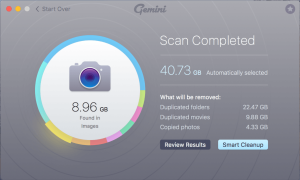
Screenshots:
System Requirements
- The Mac App Store lists macOS 10.13 or later as the compatibility requirement for Gemini 2.
- Currently, the developer’s download page specifies macOS 10.10 or later for Gemini 2, so requirements may differ between the website version and the App Store version. If you wish to install a specific version, such as 2.10.2, please check the source you plan to use before proceeding with the installation.
Installation Guide
- Download Gemini 2
- Download the Mac version from the developer or install it through the Mac App Store. MacPaw also provides an official download page for Gemini 2.
- Install the App
- If you download the MacPaw version, open the downloaded DMG file. Then drag Gemini 2 into the Applications folder.
- After that, open Gemini 2 from Applications.
- Give Required Access
- Gemini may ask for access to your Mac folders. Allow access to the locations you want the app to scan.
- For example, you can give it access to your Home folder if you want to search your main user files.
- Choose a Scan Location
- Select a folder, drive, or library that you want to check.
- You can start with the Downloads folder. Later, you can scan larger locations such as your Home folder or an external drive.
- Start the Scan
- Click the scan option and let Gemini check the selected location.
- The scan time depends on the number of files and the storage device.
- Review the Results
- Once the scan finishes, Gemini groups duplicate and similar files.
- Take a moment to review the results. Then choose the files you no longer need.
- Remove Unwanted Copies
- Use Smart Selection or select files manually. Gemini moves removed files to the Trash rather than immediately deleting them forever.
- This gives you a chance to restore a file if you make a mistake.
Benefits
- Gemini 2 can save time when your Mac contains many duplicate files.
- For instance, photographers might have multiple versions of the same image, video editors may have duplicate project files, and students often accumulate multiple copies of PDFs and downloads.
- In any of these cases, locating the files manually can be time-consuming. Gemini simplifies the process by scanning the selected location and grouping the results.
- Another advantage is the similar-file search feature. While identifying exact duplicates is easy, comparing similar photos can be more complex; Gemini helps gather these files so you can make a better decision.
- The app is also useful for those who use external storage, making it ideal for users who keep large collections of media files off their Mac’s main drive.
Performance Review
Gemini 2.10.2 is primarily a tool for cleaning up duplicate files. Its greatest strength is its straightforward scanning and review workflow.
You select a location, start the scan, and wait for the results. Gemini then groups the files and offers you cleanup options.
Update 2.10.2 also improves stability. The App Store notes specifically mention fixes for bugs that caused the app to crash unexpectedly when checking the menu bar or launching on certain Macs.
Scanning speed still depends on your Mac and the amount of data being reviewed. Scanning a small folder should be faster than scanning a large drive containing many files.
In short, Gemini 2.10.2 is a useful option for users looking for a simple way to find duplicate and similar files. It is particularly handy when storage space is running low.
FAQs
- What is Gemini 2.10.2 for Mac?
- Gemini 2.10.2 is a Mac utility that locates duplicate and similar files. It helps users remove unnecessary copies and reclaim storage space.
- Can Gemini 2 find similar photos?
- Yes. Gemini 2 can locate similar files, including photos that are virtually identical. You can then compare them and decide which ones to keep.
- Can Gemini 2 scan external drives?
- Yes. Gemini 2 allows you to scan external drives and other connected storage locations.
- Does Gemini 2 delete files permanently?
- By default, Gemini moves deleted files to the Trash. You can restore them before permanently emptying the Trash.
- Does Gemini 2 work with macOS?
- Yes. The Mac App Store indicates compatibility with macOS 10.13 and later versions. However, the developer’s current download page lists a different minimum version; therefore, it is best to check the version information before installing.
- Is Gemini 2 free?
- You can download and use Gemini 2 to run scans, but some cleanup features require a paid plan. The App Store offers in-app purchases for full access.
- Is it safe to use Gemini 2.10.2?
- Gemini is designed to let users review duplicate files before deleting them. Additionally, it moves deleted files to the Trash, allowing for restoration if necessary. However, it is always advisable to review important files before deleting them.
Leave a Reply