 If you often open folders just to check their contents, Folder Preview Pro 2.11.1 for Mac will make this task easier. The app adds folder previews to macOS’s Quick Look. You can select a folder, press the space bar, and see its contents without having to open it.
Folder Preview Pro is a product of Anybox Ltd. It also works with some third-party file managers that support Quick Look. In addition to folders, the app lets you preview compressed files and display file thumbnails.
The Pro version also gives you greater control within the Quick Look window. For example, you can open, copy, or move files to the Trash. You can also navigate between folders from the same window.
Features
- Folder Preview
- The main feature is folder preview. Open Finder and select any folder. Then, press the spacebar or Command-Y.
- A Quick Look window will display the folder’s contents. This way, you can view the files without opening another Finder window.
- This is useful when you have many folders with similar names. You can quickly find the right folder before opening it.
- Compressed File Preview
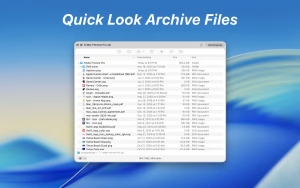
- The Pro version of Folder Preview can also display the contents of compressed files. Supported formats include ZIP, RAR, 7z, TAR, GZ, and BZ2.
- This feature will save you time. Instead of extracting a compressed file, you can view its contents from Quick Look.
- Open and Copy Files
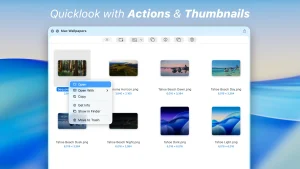
- The Pro version adds simple actions to the Quick Look window. You can open files, copy them, get information about them, view them in Finder, or move them to the Trash.
- As a result, you can perform small tasks with files without leaving the preview window.
- File Thumbnails
- Folder Preview Pro displays thumbnails of the file types supported by Finder. This makes it easier to browse folders of images and videos.
- For example, a photographer can review a folder of photos without opening each file. A designer can also find an image for a project more quickly.
- Icon View
- Icon View displays larger thumbnails. This view is ideal for finding visual files.
- You can also use the context menu (right-click) to perform actions on files. The developer notes that right-clicking may be faster than clicking on toolbar items due to a macOS limitation.
- Folder Navigation
- The path bar allows you to navigate to parent folders from the Quick Look window. However, this feature requires full disk access on macOS.
- This can be useful when you need to navigate through multiple folders.
- Compatible with other file managers
- Folder Preview Pro isn’t limited to Finder. The developer claims it also works with third-party file managers like ForkLift, Bloom, Path Finder, Commander One, and QSpace.
- This makes the application more useful for people who don’t use Finder all the time.
What’s New
- Folder Preview Pro 2.11.1 was released on June 23, 2026.
- The public information for this version details several improvements, including: better loading of large folders, support for the XZ file format, more options for list columns, improved compatibility with third-party file managers, and fixes for the toolbar and dark mode.
- These improvements focus on everyday use. In particular, they will make managing large folders and compressed files easier.
Pros & Cons
Pros
- Quick preview of folders in Finder
- Preview of archive files
- File thumbnails
- Larger icons
- Simple file actions
- Folder navigation
- Compatible with third-party file managers
- One-time purchase
- Simple Quick Preview workflow
Cons
- Some features require full disk access.
- You must enable the Quick Look extension.
- The Pro version is paid.
- Users with few folders may not need it.
Screenshots:
System Requirements
- The current Folder Preview developer page indicates that the application requires macOS 12.0 or later.
- Before installing an earlier version, such as 2.11.1, it’s advisable to check the version details on the developer’s website.
- Basic requirements:
Mac computer - macOS 12.0 or later
- Folder Preview Pro
- Quick Look extension enabled
Installation Guide
- Download the application
- Get Folder Preview Pro from the developer’s official website. Once downloaded, extract the file and move the application to your Applications folder. Then, open it.
- Enable the extension
- On recent versions of macOS, go to:
- System Settings → General → Login Items & Extensions
- Then, find Folder Preview Pro under Extensions. Select the extension and enable it.
- Enable previewing compressed files
- If you want to preview ZIP, RAR, 7z, TAR, GZ, or BZ2 files, also enable the Archive Preview Pro extension.
- Preview a folder
- Now open Finder and select a folder. Press the spacebar or Command + Y.
- The Quick Look window will display the folder’s contents. You can browse the files and use the available actions.
- Enable full disk access
- If you want to use the path bar, grant Folder Preview Pro full disk access in your system settings. This allows the application to navigate to the main folders from the preview window.
Benefits
- Folder Preview Pro is useful for anyone who works with many files daily.
- For example, photographers can preview photo folders before opening them. Designers can quickly view their project folders. Students can see the contents of downloaded folders without having to open them one by one.
- Compressed file support offers another advantage: you can preview a file before extracting it.
- Furthermore, the application reduces the need to open multiple Finder windows, making simple file tasks easier and faster.
Performance Review
Folder Preview Pro focuses on speed and convenience, rather than adding a comprehensive set of tools.
The Quick Look workflow is intuitive on Mac. Select a folder, press the space bar, and preview its contents. There’s no need to learn a new file manager.
Large folders are also a key focus of the 2.11.1 update. According to the public release information, the application has improved the loading process for large folders.
In everyday use, the biggest benefit is the reduction in clicks. You can browse a folder, search for a file, and perform simple actions all from the same preview window.
However, actual speed may vary depending on the folder size, file type, storage speed, and your Mac.
In short, Folder Preview Pro is a useful tool for Mac users who frequently work with folders and compressed files. It adds a feature that many users have come to expect from Quick Look.
FAQs
- What is Folder Preview Pro 2.11.1 for Mac?
- Folder Preview Pro is a macOS Quick Look extension. It allows you to preview folders and compressed files without opening them in the Finder.
- How do I preview a folder on a Mac?
- Select a folder in the Finder and press the spacebar or Command + Y. Folder Preview Pro will display its contents in the Quick Look window.
- Can Folder Preview Pro preview ZIP files?
- Yes. The application supports various compressed file types, including ZIP, RAR, 7z, TAR, GZ, and BZ2.
- Does Folder Preview Pro work with the Finder?
- Yes. It works with the Finder and also with compatible third-party file managers.
- Does Folder Preview Pro need full disk access?
- Full disk access is required for the path bar feature. This feature allows you to navigate to parent folders from the Quick Look window.
- Is Folder Preview Pro free?
- Folder Preview Pro is a paid app. Currently, the developer offers it as a one-time purchase for $9.99 USD.
- Is Folder Preview Pro worth it?
- It can be useful if you frequently preview folders, compressed files, images, or project files. The app is less useful if you rarely need to preview folder contents.
Leave a Reply