 Writing, organizing research, and managing a large collection of notes can be complicated if you use separate applications for each task. cyberWriter 3.0 for Mac integrates Markdown editing, note organization, AI assistance, and knowledge management into a single native macOS application.
The application is designed for writers, researchers, developers, students, and anyone who works with structured notes. It combines a Markdown editor with an Obsidian-compatible vault, a knowledge graph, an AI-powered workspace, Mermaid diagrams, LaTeX mathematical formulas, and professional document export. The developer describes cyberWriter as a native macOS application built with Swift and SwiftUI.
Version 3.0 focuses on making the writing environment more comfortable and easier to manage. It introduces a new three-way appearance selector, a vault statistics panel, improved AI-powered chat rendering, optimized vault search behavior, and macOS 26 support.
The app is also useful beyond simple note-taking. It allows you to create connected notes, organize information into folders, create diagrams, add mathematical equations, and export finished documents to formats such as PDF, Word, and HTML.
Features
- Wikilinks and Backlinks
- Wikilinks allow you to connect one note to another.
- When documents contain many related ideas, these connections transform a folder of separate files into a more organized knowledge base.
- The backlinks panel also shows which files link to the current document, making it easier to find related information.
- Full-Text Search
- Searching a large library is simple with cyberWriter’s full-text search tools.
- You can search by filename, tags, and document content. Search results also provide helpful context instead of simply displaying a list of filenames.
- This is especially useful when you remember an idea but can’t recall which note it’s in.
- Mermaid Diagrams
- cyberWriter includes built-in support for Mermaid diagrams.
- You can create flowcharts, sequence diagrams, mind maps, Gantt charts, and other diagram types directly in Markdown documents. The developer indicates support for 16 Mermaid diagram types.
- Diagrams can also be included in PDF, Word, and HTML exports.
- This is useful for technical documentation and project planning.
- LaTeX Mathematics
- Mathematical notation can be important for students, engineers, and researchers.
- cyberWriter supports LaTeX equations using KaTeX. Equations can be used both inline and in a display format.
- Mathematical formulas can also be displayed in document previews and supported exports.
- Professional Document Export
- Writing in Markdown doesn’t necessarily mean publishing in Markdown.
- cyberWriter can export documents to PDF, Word, HTML, Markdown, and plain text. Mermaid diagrams and mathematical content can be included in supported export formats.
- This makes the application useful for producing reports, documentation, articles, and other final documents.
- Voice Notes and Dictation
- The application includes voice features for users who prefer speaking to typing.
- You can record voice notes, while dictation converts speech to text. The developer describes these features as using on-device speech recognition.
- This can be useful for quickly capturing ideas while working on research or writing projects.
- Templates and Command Palette
- The command palette provides quick access to many of the application’s functions.
- Focus Mode
- When you want to concentrate on writing, Focus Mode hides unnecessary interface elements.
- This creates a cleaner writing environment and reduces visual distractions.
What’s New
- New App Appearance Controls
- cyberWriter 3.0 introduces a three-level appearance selector.
- Cyber
- Light System
- Dark System
- System options allow the app window to match the macOS appearance, while the editor and preview themes can remain separate.
- This gives users greater control over the app’s appearance, both day and night.
- Vault Stats Panel
- The new Vault Stats panel provides a quick overview of a Markdown vault.
- Number of files
- Word count
- Top tags
- Files with the most links
- Orphaned files
- Recently modified files
- Folder organization
- Organization by file type
- The resulting snapshot is saved as Vault Stats.md in the vault root.
- This is useful for managing a large knowledge base.
- Improved AI Chat Reliability
- Version 3.0 improves how AI responses are displayed.
- The update fixes situations where raw HTML tags occasionally appeared instead of correctly formatted Markdown.
- This improves the user experience in the AI workspace.
- Improved Vault Search Results
- Vault search results now jump directly to the corresponding line when clicked.
- Previously, selecting a result could open the file. This improvement significantly speeds up searching in large collections.
- macOS 26 Compatibility
- Version 3.0 restores several File menu functions that disappeared when running on macOS 26.
- These include Quick Export PDF, Export, Save to Vault, and Restore Sample Vault.
Pros & Cons
Pros
- Native macOS Markdown editor.
- Built-in AI workspace.
- Support for on-premises and cloud-based AI providers.
- Obsidian-compatible Markdown vaults.
- Interactive knowledge graph.
- Full-text vault search.
- Mermaid diagram support.
- LaTeX mathematical formula support.
- Export to PDF, Word, and HTML.
- Voice memos and dictation.
- Focus mode for distraction-free writing.
- Built-in themes.
- Vault statistics dashboard.
- No community plugins required for core features.
- Designed for Macs with Apple Silicon and Intel processors.
Cons
- The sheer number of features can be overwhelming for beginners.
- AI features may require additional setup depending on the vendor.
- Advanced knowledge management tools take time to learn.
- Users who only need a basic Markdown editor may not require all of its features.
Some newer features depend on newer versions of macOS.
Screenshots:
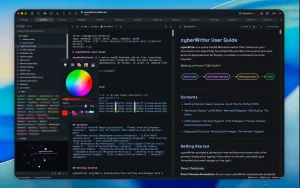
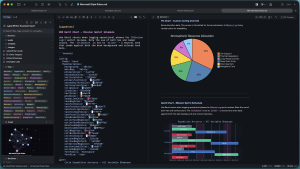
System Requirements
- Operating system: macOS 15.0 or later
- Processor: Apple Silicon or Intel Mac
- RAM: 8 GB recommended for comfortably working with large documents and AI features
- Storage: Approximately 100 MB or more for the application and work files
- Display: 1280 × 800 resolution or higher recommended
- Internet: Optional for local workflows; required for online AI providers and web services
Installation Guide
- Download cyberWriter
- Download the Mac version from the official source or the Mac App Store.
- Open the installer
- If you downloaded a DMG or ZIP package, open the downloaded file.
- Move the application
- Drag cyberWriter to the Applications folder if the installer uses the standard Mac drag-and-drop method.
- Launch cyberWriter
- Open Finder > Applications and double-click cyberWriter.
- Create or open a vault
- You can create a new Markdown vault or open an existing folder containing Markdown files.
- Users with an existing Obsidian-compatible vault can open it without migrating it.
- Configure the appearance
- Open Settings and choose Cyber, Light System, or Dark System.
- Configure AI
- If you want to use AI features, connect a compatible provider such as Ollama, LM Studio, Claude, OpenRouter, or another compatible service.
- Start writing
- Create a new Markdown document and use the editor, preview, repository, AI tools, diagrams, and export features according to your workflow.
Benefits
- Better Organization
- The vault system helps keep related documents together.
- Instead of scattering notes across different folders and applications, you can create a connected knowledge base.
- Faster Research
- Full-text search, reverse links, wiki links, and a knowledge graph make it easy to discover related information.
- This is useful for research projects with hundreds of notes.
- Flexible AI Assistance
- Quick AI actions can help with common writing tasks.
- You can summarize a section, rewrite it, change its tone, correct grammar, or continue a draft without leaving the application.
- Useful for Technical Writers
- Support for Mermaid and LaTeX makes cyberWriter especially useful for technical documentation.
- You can combine regular writing with diagrams, equations, code, and structured Markdown.
- Create professional documents
- The ability to export to PDF, Word, and HTML means your Markdown documents can be turned into finished publications without an additional conversion workflow.
- Work with existing notes
- If you already use an Obsidian-compatible Markdown vault, cyberWriter provides a separate interface for working with those files.
- This makes switching between tools easier.
- Privacy-focused workflow
- The Mac App Store states that the developer does not collect data for the app’s privacy practices. The developer also describes cyberWriter as a privacy-focused application and states that its core features do not rely on community plugins.
- Greater focus while writing
- Focus mode removes unnecessary elements from the interface.
- This can be helpful when you want to concentrate on a lengthy article, essay, report, or documentation project.
Performance Review
cyberWriter 3.0 for Mac is much more than a traditional Markdown editor.
Its biggest advantage lies in the integration of numerous writing and knowledge management tools into a single native application. It allows you to write in Markdown, organize notes, connect documents, create diagrams, use mathematical notation, and export finished documents without constantly switching between different applications.
The native macOS approach also gives the application greater specialization than many browser-based writing tools. The developer states that cyberWriter is built with Swift and SwiftUI, rather than relying on a general-purpose Electron abstraction layer.
For everyday writing, the editor is straightforward.
The real-time preview makes it easy to check formatting as you work. The split view is useful when you need to edit Markdown and inspect the rendered result simultaneously.
The vault system is where cyberWriter becomes most interesting.
A small collection of notes is easy to manage manually. However, large research libraries can become difficult to navigate quickly. Wikilinks, backlinks, full-text search, and the knowledge graph offer various ways to discover connections between documents.
The vault statistics panel, introduced in version 3.0, is another valuable addition. It allows users to quickly get an overview of the vault without manually counting files or searching through folders.
AI performance also benefits from the integrated workflow.
Instead of copying text to a separate AI website, users can work with the AI directly within the editor. The application supports both on-premises and cloud providers, giving users more options for how to utilize the AI.
For technical users, Mermaid and LaTeX support adds even more value.
It’s possible to create documentation that includes diagrams and equations, all within a Markdown-based workflow. The resulting content can be exported to professional document formats.
FAQs
- What is cyberWriter 3.0 for Mac?
- cyberWriter 3.0 is a native Markdown editor for macOS that combines writing, AI assistance, knowledge management, diagramming, mathematical notation, and document export.
- Is cyberWriter an AI-powered writing application?
- Yes. It includes an AI-powered workspace and Quick Actions for summarizing, rewriting, explaining, changing tone, continuing text, and correcting grammar.
- Can cyberWriter open Obsidian files?
- Yes. The developer states that cyberWriter can open Obsidian-compatible Markdown files without requiring migration.
- Does cyberWriter have a knowledge graph?
- Yes. It includes an interactive knowledge graph that visualizes the connections between linked Markdown files.
- Can I export documents to PDF?
- Yes. Exporting to PDF is supported, as well as to Word and HTML.
- Is cyberWriter compatible with Mermaid?
- Yes. cyberWriter includes support for 16 Mermaid diagram types and can include diagrams in compatible exports.
- Is CyberWriter compatible with LaTeX?
- Yes. LaTeX mathematical formulas are rendered using KaTeX and can be used for inline and on-screen equations.
- What changed in cyberWriter 3.0?
- Version 3.0 introduced new appearance controls, the Vault Statistics panel, improved AI chat rendering, optimized Vault search, macOS 26 support, and various interface and stability improvements.
- Does CyberWriter work on Macs with Intel processors?
- Yes. The developer states that it is compatible with Macs with both Apple Silicon and Intel processors.
- What version of macOS does cyberWriter require?
- Currently, the developer indicates that it requires macOS 15.0 Sequoia or later.
- Can I use local AI with cyberWriter?
- Yes. Supported local AI options include Ollama, LM Studio, and MLX.
Leave a Reply