 Finding large files on a Mac can be time-consuming. Disk Graph 3.2.1 for Mac simplifies this task. It displays disk usage with a visual graph, allowing you to quickly see which files and folders are taking up the most space.
The app is designed for easy storage analysis. It can scan directories accessible through the Finder, explore them, and locate large files.
Disk Graph is also useful when your Mac is running low on storage space. You can review old files and large folders in just a few steps, making it ideal for everyday storage management on your Mac.
The latest version also improves compatibility with macOS 26 and includes several bug fixes and accessibility improvements.
Features
- Disk Usage Visualization
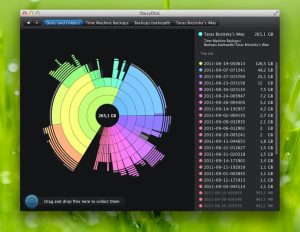
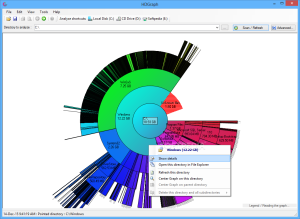
- The Disk Graph uses a visual chart to display storage usage. This makes it easy to identify large folders.
- There’s no need to manually check each folder. Instead, you can scan a location and explore its contents.
- Find Large Files
- The application helps you find files that take up a lot of storage space. This can be helpful when your Mac’s disk is almost full.
- You can explore large folders and locate files you no longer need.
- Scan Finder Locations
- The Disk Graph can open directories accessible through the Finder. This gives you an easy way to inspect different storage locations.
- You can use it to review folders on your Mac. It can also help with supported external storage locations.
- File Size Analysis
- The application offers different ways to view your storage. File Size mode focuses on the size of files and folders.
- Large sections of the graph can highlight locations that take up a lot of storage space. You can then open those locations to examine them in more detail.
- File Count Mode
- File Count mode provides another way to inspect your storage. It focuses on the number of files within a location.
- This can help you find folders with many individual files.
- Search Tools
- Disk Graph includes file search capabilities. You can search by file name and size. Search results can also appear in the outline view.
- This is useful when you already know what you want to find.
- Finder Integration
- The application can display selected files in Finder.
- This simplifies the cleanup process. However, always review files before deleting them.
- Favorites
- Disk Graph supports favorites in the full version. You can save locations that you scan frequently.
- Directory Comparison
- The application can compare similar directories. You can view the changes through interactive animations.
What’s New
- Disk Graph 3.2.1 includes several useful improvements. The update improves compatibility with macOS 26.
- Accessibility support has also been improved. The graph can now follow certain accessibility settings in macOS, such as increased contrast and reduced transparency.
- The update also supports reduced motion settings. Animations can be replaced with a simple fade-in transition.
- In addition, a rendering issue that could occur when scanning folders with free space enabled has been fixed.
- Another fix prevents directories containing search results from collapsing. The update also corrects incorrect create and modify dates.
Pros and Cons
Pros
- Simple visual storage analysis
- Easily find large files
- Supports directories accessible from Finder
- Includes file size analysis
- Includes file count analysis
- Supports filename searches
- Supports file size searches
- Includes an outline view
- Integrated with Finder
- Supports Favorites
- Allows you to compare directories
- Enhanced compatibility with macOS 26
Cons
- The visual interface may take some time to understand.
- It’s not a complete cleaning suite for Mac.
- Some features are limited in the Lite version.
- Advanced users may need more cleaning tools.
Screenshots:
System Requirements
- Application: Disk Graph 3.2.1
- Operating System: macOS 10.13 or later
- Category: Utilities
- Developer: Nicolas Kick
- Application Size: Approximately 4.5 MB
- Languages: English and 32 additional languages
Installation Guide
- Open the Mac App Store
- Open the Mac App Store. Search for Disk Graph.
- Find the app
- Verify the developer’s name before installing. The developer listed is Nicolas Kick.
- Install Disk Graph
- Start the installation from the App Store. Follow the macOS instructions.
- Launch the app
- Open Disk Graph after installation. You’ll find it in the Applications folder.
- Select a folder
- Choose the folder you want to scan. The app can scan directories accessible from the Finder.
- Start the scan
- Let Disk Graph scan the selected location. The scan will create a visual graph of your storage space.
- Review your storage
- Look for large sections in the graph. Open them to find files that are taking up a lot of space.
- Manage unwanted files
Benefits
- Find Storage Problems Faster
- A full disk can be difficult to fix. Disk Graph gives you a visual overview.
- You can quickly identify folders that are taking up a lot of space.
- Keep Your Mac Organized
- Regular storage checks help you keep your Mac organized. You can review old folders and unused files.
- Useful for Work Files
- Professionals often work with large files. Designers may have extensive project folders. Video editors may store many video files.
- Disk Graph helps you locate these space-consuming folders.
- Useful for External Storage
- This makes it useful for managing storage beyond your main folders.
- Easy Storage Management
- Disk Graph focuses on disk analysis. It doesn’t aim to offer all of Mac’s maintenance features.
- This specific design may be useful for users looking for a simple storage analyzer.
Performance Review
Disk Graph 3.2.1 offers a specific approach to storage analysis. Its main advantage is the visual disk graph.
The graph makes it easy to identify large folders, allowing you to explore them for more details.
Version 3.2.1 also improves stability, fixing several issues from previous versions.
This update improves compatibility with macOS 26 and optimizes accessibility behavior.
FAQs
- What is Disk Graph 3.2.1 for Mac?
- Disk Graph is a Mac utility that analyzes disk usage. It uses a visual graph to show which files and folders are taking up storage space.
- Is Disk Graph compatible with macOS 26?
- Yes. Version 3.2.1 improves compatibility with macOS 26.
- What version of macOS does Disk Graph require?
- Can Disk Graph find large files?
- Yes. The application is designed to help you find files that take up a lot of disk space.
- Can I search for files in Disk Graph?
- Yes. Disk Graph allows you to search by file name and size.
- Can Disk Graph display files in the Finder?
- Yes. The full version can open selected files in the Finder.
- Is there a free version of Disk Graph?
- Yes. Disk Graph Lite is available as a free option. Some features are disabled in the Lite version.
- These include Favorites and certain Finder actions.
- Is Disk Graph a cleanup app for Mac?
- Disk Graph is primarily a disk analysis tool. Its main function is to show where your storage is being used.