 Working with scanned documents can be frustrating when PDFs are large, difficult to search, or poorly organized. PDFify 5.2 for Mac offers a practical solution by combining document scanning, OCR, PDF compression, conversion, and automation into a single Mac application.
The application is designed for users who regularly work with paper documents, receipts, invoices, books, reports, and other scanned materials. Instead of using several separate utilities, PDFify integrates many common PDF tasks into a single workflow.
Version 5.2 includes several useful improvements, such as a redesigned scan dialog, new compression presets, shortcut automation, additional page size options, and clearer PDF/A information.
One of PDFify’s biggest advantages is its focus on searchable documents. The OCR recognizes the text on scanned pages, allowing you to search documents instead of manually reading each page.
Features
- Scan documents directly to PDF
- PDFify converts scanned pages into PDF documents without a complex workflow.
- You can scan individual pages or large collections of documents and organize them into a single PDF.
- This is useful for digitizing documents, receipts, contracts, notes, and other physical documents.
- OCR for PDF with editable text
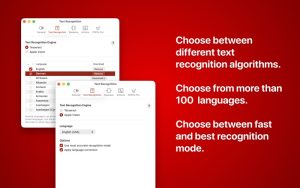
- OCR is one of PDFify’s most useful features.
- Optical Character Recognition (OCR) analyzes scanned pages and recognizes the text they contain
- PDF Compression
- Large scanned PDFs can take up a lot of storage space.
- Version 5.2 introduces new grayscale and black and white compression presets.
- These presets make it easy to choose the right compression level without having to manually adjust each setting.
- PDF Conversion
- PDFify can convert documents to PDF format as part of your workflow.
- This is useful for creating standardized digital copies of paper documents or other source material.
- PDF/A Compatibility
- PDF/A is designed for long-term document preservation.
- PDFify offers PDF/A-related functionality and displays PDF/A status information more clearly in version 5.2.
- This can be helpful for organizations and users who need documents suitable for long-term archiving.
- Multiple Page Sizes
- PDFify supports different page size options for scanned documents.
- Version 5.2 adds additional page size options, giving users greater control over the processing of scanned pages.
- Redesigned Scanner Dialog
- The scanner interface has been redesigned in version 5.2.
- App Shortcuts
- PDFify 5.2 adds support for App Shortcuts, allowing users to integrate PDF-related workflows with Apple’s Shortcuts system.
- Drag-and-Drop Workflow
- PDFify supports a simple, Mac-style workflow.
- You can work with documents without having to navigate through complicated menus for each task.
- Document Organization
- PDFify can help create a more consistent workflow for scanning, processing, compressing, and exporting documents.
- This makes it useful for home offices, businesses, students, and researchers.
What’s New
- Redesigned Scanner Dialog
- The scanner dialog has been redesigned to make managing scanning workflows easier.
- New Compression Presets
- Version 5.2 includes new grayscale and black and white presets.
- These options are useful for reducing PDF file sizes without compromising the readability of scanned documents.
- App Shortcuts Automation
- The new integration with App Shortcuts expands PDFify’s automation capabilities.
- Users can connect PDFify with the Apple Shortcuts app to create repeatable document workflows.
- Improved PDF/A Information
- PDFify 5.2 provides clearer information about the status of PDF/As.
Pros & Cons
Pros
- Native PDF workflow for Mac users.
- Searchable OCR for documents.
- PDF scanning support.
- PDF compression tools.
- New grayscale and black and white presets.
- PDF/A support.
- Application shortcut automation.
- Redesigned scanner dialog.
- Additional page size options.
- Useful for document archiving.
- Ideal for office and home workflows.
- Useful for large collections of scanned documents.
Cons
- Advanced PDF workflows can take time to learn.
- OCR accuracy can vary depending on the quality of the original scan.
- Very large document collections may require additional processing time.
- Some advanced features may be unnecessary for users who only create PDFs occasionally.
Screenshots:
System Requirements
- Operating system: macOS version compatible with PDFify 5.2
- Processor: Intel or Apple Silicon Mac, depending on the compatible version
- RAM: 4 GB minimum; 8 GB or more recommended for large documents
- Storage: Sufficient free space for the application and processed PDFs
- Scanner: Required for direct scanning
- Internet connection: May be required to download the application and updates
Installation Guide
- Download PDFify
- Download PDFify from the developer’s official website or an authorized Mac software source.
- Open the Download
- Locate the downloaded application package or DMG file and open it.
- Move PDFify to Applications
- If you received a standard DMG installer, drag PDFify to the Applications folder.
- Launch the Application
- Open Finder > Applications and double-click PDFify.
- Allow Scanner Access
- If you want to scan physical documents, macOS may request access to the connected scanner.
- Grant the necessary permission.
- Connect the Scanner
- Connect your compatible scanner and ensure macOS recognizes it.
- Select Your Workflow
- Choose whether you want to scan a new document, process an existing PDF, compress a file, or create a document with editable text.
- Enable OCR
- For scanned documents that require editable text, enable the OCR workflow.
- Export the PDF
- Save the finished document to your preferred location.
Benefits
- Create Searchable Documents
- One of PDFify’s biggest advantages is the ability to transform scanned pages into searchable PDFs.
- This makes it much easier to find information in long documents.
- Reduce PDF File Sizes
- Compression makes it easier to store and share large scanned files.
- This is especially useful when uploading documents to websites with file size limits.
- Digitize Paper Documents
- PDFify offers a convenient way to convert physical documents into digital files.
- You can scan invoices, receipts, notes, forms, and other documents for easy storage.
- Enhance Your Document Archives
- PDF/A-related tools make PDFify useful for long-term document preservation workflows.
- Researchers, businesses, and organizations can all benefit from maintaining structured digital archives.
- Save Time with Automation
- Application shortcuts reduce repetitive tasks.
- If you frequently perform the same tasks with PDFs, automation can transform several manual steps into a repeatable workflow.
- Useful for students
- Students can scan textbook pages, handwritten notes, assignments, and research materials.
- OCR makes it easy to search text documents later.
- Useful for small businesses
- Small businesses often manage invoices, receipts, contracts, and administrative documents.
- PDFify can help convert these documents into organized digital files.
- Better daily PDF management
- Instead of switching between a scanning app, an OCR tool, a PDF compressor, and a document converter, PDFify offers a more centralized workflow.
- This simplifies daily document management.
Performance Review
PDFify 5.2 for Mac is a handy PDF utility, ideal for users who frequently scan, process, and organize documents.
Its main advantage lies in how it integrates several common PDF tasks into a single application.
For basic scanning, the redesigned scanner dialog makes the workflow easier to understand. You can configure your scanning preferences and create digital documents without needing a complex third-party workflow.
Optical Character Recognition (OCR) is especially useful.
A scanned PDF without OCR is essentially a collection of images. Therefore, finding a specific phrase or name can be quite time-consuming. Once OCR recognizes the text, searching becomes much simpler.
This makes PDFify useful for document archiving.
For example, imagine a small business with several years’ worth of scanned invoices. Instead of opening each PDF individually, searchable documents allow employees to look up customer names, invoice numbers, or other terms.
Compression is another practical advantage.
Scanned PDFs can be surprisingly large, especially when they contain color images. New grayscale and black-and-white presets in version 5.2 make it easier to create smaller files for documents that don’t require color scanning.
PDF/A support also gives the application a professional feel.
Users who need to preserve documents long-term can benefit from having PDF/A-related information readily available within the workflow.
The addition of application shortcuts is helpful for automation.
Once a repetitive workflow is set up, users can reduce the amount of manual work involved in document processing. This is especially valuable for those who handle large volumes of PDFs weekly
FAQS
- What is PDFify 5.2 for Mac?
- PDFify 5.2 is a PDF utility for Mac designed to scan, perform OCR, compress, create PDFs, process documents, and manage PDF/A workflows.
- What’s new in PDFify 5.2?
- Version 5.2 adds a redesigned scan dialog, new grayscale and black and white compression presets, application shortcut automation, additional page sizes, and clearer PDF/A status information.
- Does PDFify support OCR?
- Yes. PDFify can use OCR to convert scanned documents into searchable PDFs.
- Can PDFify compress PDFs?
- Yes. PDFify offers PDF compression features, including new grayscale and black and white presets in version 5.2.
- What is PDF/A?
- PDF/A is a specialized PDF format designed for long-term document preservation and archiving.
- Is PDFify compatible with PDF/A?
- Yes. PDFify offers PDF/A-related features, and version 5.2 improves the visibility of information about the status of PDF/A files.
- Can I automate PDFify?
- Yes. Version 5.2 adds support for App Shortcuts, allowing you to integrate PDFify with Apple’s Shortcuts automation system.
- Is PDFify useful for scanned documents?
- Yes. Its combination of scanning, OCR, compression, and PDF management makes it especially useful for scanned documents.
- Can PDFify reduce the size of scanned PDFs?
- Yes. Compression features can reduce the size of scanned PDFs, and version 5.2 adds specific presets for grayscale and black and white.